Migrating from QuickBooks Desktop to QuickBooks Online is a significant step for any business looking to leverage the advantages of cloud-based accounting software. QuickBooks Online offers several benefits, including access from anywhere, automatic backups, and seamless integration with various apps and services. This guide will walk you through the process of transitioning migrating from QuickBooks desktop to QuickBooks online, ensuring a smooth and successful migration.
1. Evaluate Your Current Setup
Before initiating the migration, it’s essential to evaluate your current QuickBooks Desktop setup:
Check System Requirements
Ensure your computer and internet connection meet the system requirements for QuickBooks Online. You need a reliable internet connection and a compatible web browser (Google Chrome, Mozilla Firefox, Microsoft Edge, or Safari).
Analyze Your Data
Review the data in QuickBooks Desktop. Clean up unnecessary files, reconcile accounts, and ensure that your financial statements are accurate and up-to-date. This step helps streamline the migration process.
Choose the Right QuickBooks Online Plan
QuickBooks Online offers several plans: Simple Start, Essentials, Plus, and Advanced. Compare these plans and choose the one that best suits your business needs.
2. Prepare for Migration
Create a Backup
Before you start the migration process, create a backup of your QuickBooks Desktop data. This ensures you have a copy of your data in case anything goes wrong during the migration.
Update QuickBooks Desktop
Make sure your QuickBooks Desktop software is updated to the latest version. This helps avoid compatibility issues during the migration.
Gather Login Credentials
Ensure you have your QuickBooks Desktop login credentials and create a QuickBooks Online account if you haven’t already.
3. Start the Migration Process
Step 1: Export Data from QuickBooks Desktop
Open QuickBooks Desktop: Launch your QuickBooks Desktop software.
Company File: Open the company file you want to export.
Export Company File: Navigate to “Company” in the top menu, then select “Export Company File to QuickBooks Online”.
Step 2: Log into QuickBooks Online
Sign In: Log in to your QuickBooks Online account. If you don’t have an account, you’ll need to create one.
Prepare for Import: QuickBooks Online will guide you through the initial setup and preparation for importing data.
Step 3: Import Data to QuickBooks Online
Upload Data: Follow the on-screen instructions to upload your company file from QuickBooks Desktop to QuickBooks Online.
Review and Confirm: Review the data in QuickBooks Online to ensure everything has transferred correctly.
4. Post-Migration Steps
Verify Data Accuracy
After migrating your data, verify its accuracy. Check balances, transaction histories, and reports to ensure everything matches your QuickBooks data migration.
Reconnect Bank Accounts and Apps
Reconnect your bank accounts and any third-party apps to QuickBooks Online. This might involve re-entering your bank credentials and re-establishing connections to apps like payroll, CRM, and other tools you use.
Set Up Users and Permissions
QuickBooks Online allows you to add users and set permissions. Configure these settings to control who has access to different parts of your financial data.
Customize Your QuickBooks Online
Customize your QuickBooks Online settings to match your business needs. This includes setting up custom invoices, email templates, and other preferences.
5. Tips for a Smooth Transition
Plan for Downtime
Plan your migration during a period of low activity to minimize disruption to your business operations. Inform your team about the migration and any expected downtime.
Seek Professional Help if Needed
If you’re not confident about performing the migration yourself, consider hiring a QuickBooks ProAdvisor or a certified accountant to assist you.
Utilize QuickBooks Support
Take advantage of QuickBooks Online support resources, including tutorials, forums, and customer service. These resources can provide valuable assistance during the migration process.
6. Advantages of QuickBooks Online
Migrating to QuickBooks Online offers several benefits that can enhance your business operations:
Accessibility
Access your financial data from anywhere with an internet connection. This is particularly beneficial for remote work and managing finances on the go.
Real-Time Collaboration
Multiple users can work on the same data simultaneously, making collaboration easier for your team.
Automatic Updates and Backups
QuickBooks Online automatically updates to the latest version and backs up your data regularly, reducing the risk of data loss.
Integration with Apps
QuickBooks Online integrates seamlessly with a wide range of third-party apps, enhancing its functionality and allowing you to tailor it to your specific business needs.
Scalability
As your business grows, QuickBooks Online can easily scale to accommodate more users, transactions, and complex accounting requirements.
7. Common Challenges and How to Overcome Them
Data Discrepancies
During migration, some data might not transfer perfectly. Compare key reports from QuickBooks Desktop and QuickBooks Online to identify and correct discrepancies.
Learning Curve
QuickBooks Online has a different interface and features compared to QuickBooks Desktop. Utilize training resources and tutorials to help you and your team get up to speed.
Reconnecting Services
Reconnecting bank feeds, payroll services, and other integrations can be time-consuming. Make a checklist of services to reconnect post-migration to ensure nothing is missed.
Conclusion
Moving from QuickBooks Desktop to QuickBooks Online is a strategic decision that can offer significant benefits for your business. By following the steps outlined in this guide and taking the time to prepare adequately, you can ensure a smooth and successful transition. Embrace the flexibility and advanced features of QuickBooks Online to streamline your accounting processes and support your business’s growth.
Shipping Containers are the cargo containers that allow goods to be stored for transport in trucks, trains and boats, making intermodal transport possible. They are typically used to transport heavy materials or palletized goods. Shipping Containers are used to protect transported cargo from shock and bad weather conditions, as well as keep storage products intact. They were first used in the 1950s and were initially developed for the purpose of commercial shipping.
Shipping containers are also referred to as, ISO container, conex box, railroad container, intermodal container and certain truck trailers. This industry term refers to the International Standards Organization (ISO), the largest developer of international standards and the organization that developed the standard dimension specifications for steel shipping containers used worldwide.
The design of the ISO standard containers allows for intermodal shipping, which is the movement of containers from one mode of transport to another, like ship, rail, or truck, without the need of having to load and unload, and reload its contents.
Shipping Containers are used to protect transported cargo from shock and bad weather conditions, as well as keep storage products intact. They were first used in the 1950s and were initially developed for the purpose of commercial shipping container transport.
Depending on the type of product that is going to be sent, the Shipping Container can vary in dimension, structure, material, etc. Characteristics of these shipping containers were later standardized, something that expedited transport without the need to load and unload the merchandise along the way.
There are different types of Shipping Containers for different types of transportation:
Common Types of Shipping Containers
Shipping Containers are another name for the conex boxes most used on the market. Shipping Containers are typically suitable for any type of dry cargo: pallets, boxes, bags, machines, furniture, etc.
Common types include:
Dry Storage Container
Refrigerated Container
Open top container
Flat rack container
Open Side Container
Tanks Container
Ventilated containers
Dry Storage Shipping Container
Dry Storage Shipping Containers are your typical standard shipping containers. Basic construction is made of steel, and hermetically sealed, without cooling or ventilation. Sizes typically come in 20 ‘, 40’ or 40 ‘High Cube. The High Cube category facilitates an increase of 13% of the internal cubic capacity and can handle the heaviest loads (coal, tobacco, etc.)
Refrigerated Shipping Container
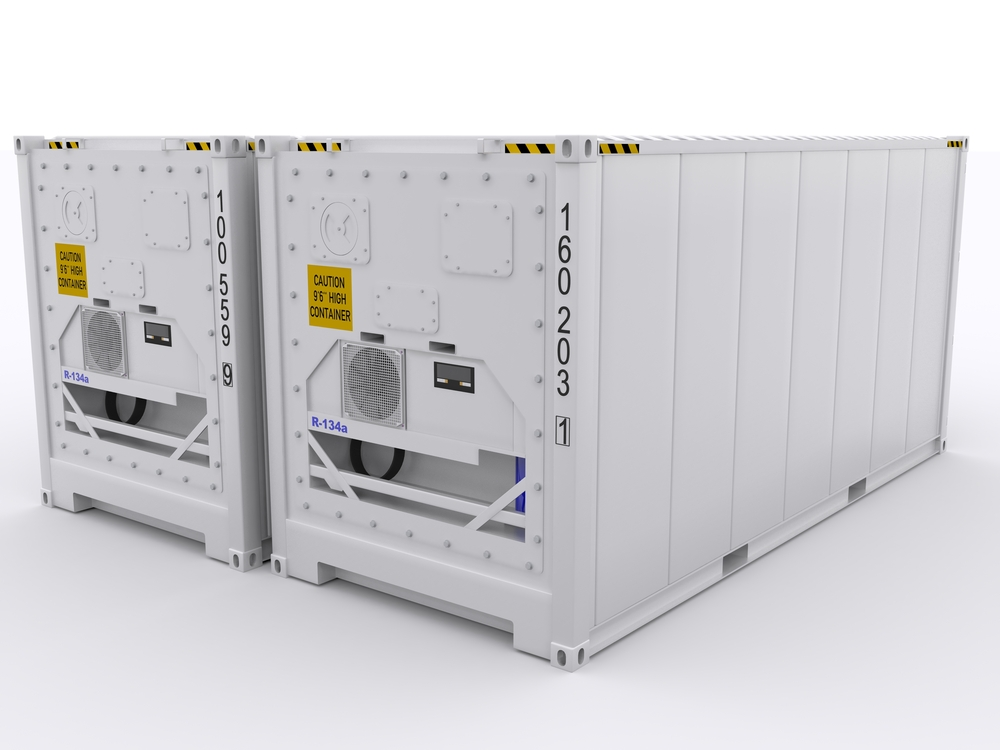
Reefer Shipping Containers provide a temperature controlled environment. They have a power supply that connects to energy sources during transport. This allows the products to be transported at a constant temperature throughout the journey. They have the possibility to lower temperature from -18 ° to 30 °. There are 20 and 40 foot models, in addition to the High Cube.
This type of Shipping Container is especially recommended for transporting food or products that need a low storage temperature.
Open Top Shipping Container
Open Top Shipping Container have the same measurements as the standard containers, but are open at the top because they have a removable canvas roof. These containers facilitate the transport of bulky loads.
Flat Rack Shipping Container
Flat Rack Shipping Containers are like the Open Top, but also lack side walls and even, in some cases, front and rear walls. They are used for atypical loads and pay supplements in the same way as Open Top.
Open Side Shipping Container
Open Side Shipping Containers have the same measurements as standard containers; 20 or 40 feet, with the difference that they have a side opening. This allows for transporting very long merchandise, whose dimensions prevent it from being loaded by the back door.
Tank Shipping Container
Tank Shipping Containers are used for the liquid transport and made to carry dangerous as toxic, corrosive, highly combustible chemicals, as well as oil, milk, beers, wine, mineral water, etc. They have the same dimensions as a Dry Shipping Containers, but their structure is different, as they include a polyethylene tank inside.
Ventilated Shipping Containers
Ventilated Shipping Containers are made for transporting products such as coffee or cocoa beans, which must be ventilated in transit; sometimes these units are called “coffee containers”.
Shipping Container Door Diagram and Troubleshooting
Now we are going to run through the essential parts of a shipping container.
For a door to work, you need hinges. Pins hold the shipping container’s hinges together through a barrel. In certain cases when doors are difficult to open, hinge pins and blades may be seized due to corrosion. Each door is fitted with 2 to 4 vertical lock rods to enable opening, closing and locking of the doors.
The door handle rotates the lockbar to initiate the door opening process by forcing the cams out of their keepers. Each door handle has a door locking handle retainer that slides over the door handle when in locked position.
At the end of each lock rod is a cam welded in place which engages with knuckles, also known as cam keepers. The action of engaging the cams to the keepers forms an anti-racking function. In certain cases, often unfortunately too many, contents of the shipping container may have shifted causing shipping container doors and lockrods to warp.
When opening a shipping container, start with the right hand door first. Swivel the handles, engage the cams and keepers, and twist both door handles. Closing the doors is just a reverse of this process.
The lock box is a steel box welded to the right hand door which overlaps a staple welded to the left hand door. A padlock, normally CISA type 285 66 can then be attached inside the lock box through the staple and is then protected from direct attack, hindering attempts to gain entry to the container.
ISO markings and a consolidated data plate allow worldwide intermodal transport and are updated as necessary. Take note that customs authorities in some countries may also have their own container seal regulations as part of their national security.
Rubber gaskets are fitted to the container doors during the manufacturing process and prevent water ingress. Door gaskets are designed to present two or more fins against the structure or adjacent door. These are generally flexible but when the gasket is damaged, they may become stiff thus jamming the door closed, or preventing it from being closed.
Doors
Two door leaves are fabricated from two vertical rolled hollow sections and 2 horizontal c section members. The frame is infilled with corrugated steel paneling.
These are normally attached to the rear corner posts each with four drop forged steel hinge blades. The blades allow 270 degree opening which allow the doors to swing back against the container side wall.
(Cargo may shift during transit. Look at the container to make sure that the doors are aligned and level, both top and bottom. In cases where the container frame is racked and the door gear will not operate correctly.)
Lockbox
The lock box is a steel box welded to the right hand door which overlaps a staple welded to the left hand door. A padlock, normally type CISA type 285 66 can then be attached inside the lock box through the staple and is then protected from direct attack, hindering attempts to gain entry to the container.
Lockrods, cam keepers, handles
Each door is fitted with 2-4 vertical lock rods to enable opening, closing and locking of the doors.
At the end of each lock rod (top and bottom) is a cam welded in place which engages with knuckles, also known as cam keepers.
The action of engaging the cams to the keepers forms an anti-racking function.
(In certain cases, often unfortunately too many, contents of the shipping container may have shifted, or containers even dropped, causing shipping container doors and lockrods to warp)
The door handle rotates the lockbar to initiates the door opening process by forcing the cams out of their keepers. Each door handle has a door locking handle retainer that slides over the door handle when in locked position.
Rubber gaskets
Rubber gaskets are fitted to the container doors during the manufacturing process and prevent water ingress.
(Door gaskets are designed to present two or more fins against the structure or adjacent door. These are generally flexible but when the gasket is damaged, they may become hard or blocked thus jamming the door closed, or preventing it being closed.)
ISO markings and CSC plate
ISO markings and a consolidated data plate allow worldwide intermodal transport when left in place and updated as necessary.
Hinge pins
Of course for a door to work, you need hinges.
(In certain cases when doors are difficult to open, hinge pins and blade are seized due to corrosion.)
Choosing the Right Company for Buying a Shipping Container
When doing research in finding the right Shipping Container, follow some of these tips:
Research Online
Choose which companies have a good track record of excellence and reputation. Read reviews and what other customers have to say.
Check for Availability
If you are shipping from various locations, check for availability if containers can be delivered to your required areas.
Check for Best Pricing
If money matters, you can find used container resellers online that might be able to offer half the price on used containers.
Check for Good Customer Service
If you plan to order often, you might want to check for good customer service. Ask potential container companies a question through email or their online customer service. See how fast they respond.
Check for Warranty
Check with companies to see if they offer any warranties or buy back or trade in plans.
There are millions of Shipping Containers in use around the world, and a lucky few get a second life as repurposed shipping container structures. While they look a bit plain and boxy to the untrained eye, shipping containers play a critical role in our lives, whether embarking on ocean crossings to deliver the goods we use every day or venturing into a second life as a container structure.
Here are Some Fascinating Facts about Shipping Containers
Shipping Containers can be safely stacked nine-high.
Well-maintained Shipping Containers hold 759, of their original value for 25+ years.
There are over 37 million Shipping Containers in use around the world.
A Shipping Container floor can hold up 55,000 lb. of goods without warping.
Shipping Container flooring is made of 1-1/8” marine grade plywood.
Most Shipping Containers are 20 feet or 40-feet long.
Shipping Containers are made of 16-gauge corten steel.
Common container modifications include: personnel doors, windows flooring, shelving, work stations, insulation, climate control & even restrooms.
Fun Ways to Use Shipping Containers
Shipping Containers are not just used for cargo these days. There are many innovative and imaginative uses you may like to consider.
Here are few ideas of how shipping containers have been used for modern, cost effective buildings.
Homes
The trend to build cost-effective homes from recycled shipping containers started in USA and has reached Australia.
Art Galleries
Architect, Tomokaza Hayakawa designed an art gallery in Japan using two shipping containers stacked on each other.
Drive-Thru Coffee
Starbucks in Washington have used four old shipping containers to create an architect designed drive-thru store.
Cafes
A cafe in Footscray (Melbourne) called Rudimentary has been built using three 40-foot shipping containers.
Polar Stations
India has built a Polar Station in Antarctica using 134 shipping containers. They cover three floors and are well insulated for the weather conditions.
A well-maintained Shipping Container can hold 75% of their original value for 25+ years. Every day, container ships transport goods all over the world on the international seas.
Shipping Container Opening and Closing Tool
Shipping containers often take a beating, traveling around the world, being exposed to freezing conditions and rust due to seawater or when the frost has melted.
During the cold season, and in freezing parts of the world, our shipping container tool can benefit the opening and closing of frozen shipping container doors and hard to open or rusted containers.
Injuries often occur as a result of personnel trying to open and close difficult container doors, and often are the result of inappropriate techniques being used to open them.
To aid in opening and closing shipping container doors, we introduce OPNBar.
A Shipping Container (also known as Intermodal Container, ISO Container,Railroad Container, and certain Truck Trailers) is a large standardized shipping container, designed and built for intermodal freight transport. Shipping Containers can be used across different modes of transport. They can go from ship to rail to truck, without unloading and reloading their cargo.
The metal doors on the shipping containers on these containers are standardized. Shipping Containers use the same type and style of doors and locking bars, which our tool can be used.
Lengths are as follows: 20′, 40′, 45′, 48′, 50′, 53′. All these containers are globally used to transport cargo. The 53′ length is now, the new the standard length.
Here are some likely reasons a Shipping Container door will not open or close. Visit https://www.shippingcontainertool.com/what-is-a-shipping-container/ to find out how to overcome some of these issues.
Doors and lockrods may warp or container frame is racked so that the door gear will not operate correctly. This may be caused by cargo shifting during transit. Look at the container to make sure that the doors are aligned and level, both top and bottom.
The hinge pins and blade are seized due to corrosion.
The door gasket has been damaged and is preventing opening. Door gaskets are designed to present two or more fins against the structure or adjacent door. These are generally flexible but when the gasket is damaged, they may become hard or blocked thus jamming the door closed, or preventing it being closed.
Water has become trapped between frozen shipping container doors, particularly relevant to refrigerated cargoes, or containers with moisture releasing cargoes in cold weather.
In today’s rapidly evolving technological landscape, operating systems have become an indispensable part of our daily lives. Whether it’s our smartphones, computers, or even household appliances, we rely on operating systems to efficiently handle various tasks and applications. However, there is a specific type of operating system that focuses on providing a streamlined and efficient experience for individual users: the single-user, single-task operating system, also known as SUSTOS.
Characteristics of single-user, single-task operating systems
A single-user single-task operating system, as the name suggests, is designed to handle only one task at a time for a single user. Unlike multitasking operating systems that allow multiple tasks to run simultaneously, SUSTOS prioritizes efficiency and performance by focusing on one task at a time. This characteristic allows the system to allocate its resources effectively, resulting in faster response times and smoother operations.
One of the key features of SUSTOS is its simplicity. By limiting the system’s abilities to handle only one task, it minimizes complexity and resource usage. This simplicity makes SUSTOS ideal for devices that require reliability and stability, such as those used in industrial applications or embedded systems. Moreover, the streamlined nature of SUSTOS reduces the chances of conflicts and errors that may arise from running multiple tasks concurrently.
Advantages of single user singl-task operating system
Single-task operating systems offer several advantages that make them a preferred choice for certain use cases. Firstly, their streamlined approach to task handling results in improved efficiency and performance. By focusing all available resources on a single task, SUSTOS can allocate more processing power and memory, leading to faster execution and better user experience.
Another advantage of SUSTOS is its reliability. Since it only runs one task at a time, there are fewer chances of system crashes or conflicts. This makes it suitable for critical systems that require constant uptime and stability. Industries such as healthcare, aviation, and manufacturing often rely on SUSTOS to ensure the smooth and uninterrupted operation of their devices.
Additionally, SUSTOS is generally more secure compared to multitasking operating systems. With only one task running at a time, the system has a reduced attack surface, making it less susceptible to malware and other security threats. This level of security is particularly crucial for systems that handle sensitive data or operate in environments where security is paramount.
Disadvantages of single-user,single-task operating systems
While single-user, single-task operating systems offer several advantages, they also come with certain limitations. One of their notable drawbacks is their lack of multitasking capabilities. Since SUSTOS can only handle one task at a time, users may find it inconvenient when they need to switch between multiple applications or perform concurrent activities. This limitation makes SUSTOS less suitable for general-purpose computing environments where multitasking is essential.
Another disadvantage of SUSTOS is its limited resource utilization. Since the system is dedicated to running a single task, unused resources remain idle, resulting in potential waste. This inefficiency can be a concern for devices with limited resources, such as low-powered embedded systems or IoT devices. However, advancements in hardware technology have mitigated this issue to some extent by providing more capable and efficient hardware components.
Examples of single user single task operating systems
Several examples of single-user single-task operating systems have been developed over the years. One of the best-known examples is MS-DOS (Microsoft Disk Operating System), which was widely used in early personal computers. MS-DOS focused on running a single task, typically command-line applications, and provided a simple and efficient environment for users.
Another example is FreeRTOS (Real-Time Operating System), which is designed specifically for embedded systems and real-time applications. FreeRTOS prioritizes real-time responsiveness and resource efficiency, making it suitable for devices with limited resources and strict timing requirements.
Palm OS, the operating system used in Palm handheld devices, is also a notable example of a single user single task operating system. Palm OS offered a simplified user interface and focused on providing a seamless experience for managing personal information and tasks, making it popular among users who sought simplicity and reliability.
Comparison with multi-user and multi-tasking operating systems
In contrast to single-user single task operating systems, multi-user and multi-tasking operating systems allow multiple tasks to run simultaneously, serving multiple users concurrently. These operating systems, such as Windows, macOS, and Linux, provide a more versatile computing environment suitable for a wide range of applications and user requirements.
Multi-user operating systems enable multiple users to access the system simultaneously, each with their own account and resources. This feature is particularly useful in enterprise environments or shared computing environments. Users can log in and run their own applications and tasks independently, fostering collaboration and resource sharing.
On the other hand, multitasking operating systems allow for the execution of multiple tasks concurrently, even within a single user environment. Users can switch between applications seamlessly and perform multiple activities simultaneously. This multitasking capability enhances productivity and enables users to efficiently manage various tasks, such as browsing the web while listening to music or editing documents while running a video conference.
Use cases for single user single task operating systems
Single user single task operating systems find their niche in specific use cases where simplicity, reliability, and performance are paramount. One such use case is in industrial applications, where systems need to perform critical tasks with minimal room for errors. Industrial control systems, robotics, and process automation often rely on single user single task operating systems to ensure precise and timely execution of tasks.
Embedded systems also benefit from single user single task operating systems. These systems, which are designed for specific functions within larger devices or machinery, require stability and efficiency. Examples include medical devices, automotive systems, and household appliances. By leveraging SUSTOS, manufacturers can ensure that these devices operate reliably and perform their intended functions without compromising performance.
Additionally, single-user single-task operating systems can be advantageous for devices used in mission-critical environments, such as aviation systems or defense applications. In these scenarios, reliability and real-time responsiveness are crucial for the safety and effectiveness of the systems. SUSTOS provides a streamlined and predictable environment, minimizing the chances of failures or conflicts that could jeopardize the operation of these critical systems.
Evolution and history of single user single task operating systems
The concept of single-user single-task operating systems dates back to the early days of computing. In the early 1960s and 1970s, when computers were large and expensive, single-user single-task operating systems were prevalent due to hardware limitations. Operating systems like CP/M (Control Program/Monitor) and MS-DOS were developed to provide a simple and efficient interface for users to interact with the computer.
As hardware technology advanced and computers became more powerful and affordable, the demand for multitasking and multi-user operating systems grew. The rise of graphical user interfaces (GUIs) in the 1980s, exemplified by operating systems like Apple’s Macintosh and Microsoft’s Windows, allowed users to interact with multiple applications simultaneously, paving the way for multitasking operating systems.
However, single-user single-task operating systems continue to play a vital role in specific domains and industries. Their simplicity, reliability, and efficiency make them suitable for applications where multitasking or multi-user capabilities are not necessary or desired.
Future prospects and developments in single user single task operating systems
While multi-user and multitasking operating systems dominate the mainstream computing landscape, single user single task operating systems still have their place in specialized environments. As technology continues to evolve, there are ongoing developments in SUSTOS to address the changing needs of specific industries and use cases.
One area of development is the integration of real-time capabilities into single-user single-task operating systems. Real-time operating systems (RTOS) aim to provide predictable and deterministic behavior, crucial for systems that require precise timing and responsiveness. By incorporating real-time features into SUSTOS, developers can leverage the advantages of both single user single task and real-time operating systems, creating a hybrid solution that meets the demands of critical applications.
Furthermore, advancements in hardware technology, such as the proliferation of multi-core processors and improved memory management techniques, have enabled single-user single-task operating systems to handle multiple tasks more efficiently. This increased capability allows for better resource utilization and improved performance, making SUSTOS more versatile and adaptable to a wider range of use cases.
In conclusion, understanding what a single-user single-task operating system is provides valuable insights into the inner workings of operating systems. By focusing on one task at a time, these systems prioritize efficiency, reliability, and simplicity. While multi-user and multitasking operating systems dominate general-purpose computing, single-user single-task operating systems excel in specialized environments where specific requirements, such as real-time responsiveness and stability, are critical. As technology continues to advance, we can expect further developments in SUSTOS to cater to the evolving needs of various industries and applications.
Navigating Liquid IV Side Effects and the World of IV Therapy: Your Complete Guide
In recent years, the popularity of IV therapy has soared, offering individuals a convenient and effective way to address various health concerns, from hydration to nutrient deficiencies. However, as with any medical intervention, it’s essential to understand potential side effects and weigh them against the benefits. Let’s explore the realm of IV therapy, including Liquid IV side effects, available treatments, and where to find IV therapy near you.
Understanding Liquid IV Side Effects: What You Should Know
Liquid IV is a well-known hydration product designed to replenish electrolytes and fluids rapidly. While many users experience positive results, it’s crucial to be aware of potential side effects. Some individuals may experience gastrointestinal discomfort, such as nausea, vomiting, or diarrhea, after consuming Liquid IV. Additionally, allergic reactions are possible, especially in those with allergies to specific ingredients. It’s essential to read the product label carefully and consult with a healthcare professional before use, particularly if you have any underlying health conditions.
Exploring IV Therapy: A Comprehensive Approach to Wellness
IV therapy involves administering fluids, vitamins, minerals, and other nutrients directly into the bloodstream via an intravenous drip. This method allows for rapid absorption and can be customized to address individual needs. IV therapy is commonly used to rehydrate the body, boost energy levels, support immune function, and promote overall well-being.
Finding IV Therapy Near Me: Your Go-To Resource for Hydration Solutions
If you’re interested in exploring IV therapy, finding a reputable provider nearby is essential. A quick search for “IV therapy near me” can yield a variety of options, including wellness clinics, medical spas, and mobile IV therapy services. It’s essential to research providers, read reviews, and inquire about their qualifications before scheduling a session.
Delving Into IV Hydration: Replenishing Your Body From Within
IV hydration therapy involves delivering fluids directly into the bloodstream to address dehydration and restore electrolyte balance. This method is particularly beneficial for individuals who are dehydrated due to illness, exercise, travel, or excessive alcohol consumption. IV hydration therapy can provide rapid relief from symptoms and help restore overall hydration levels.
Discovering Hydrate IV: Your Source for Customized Hydration Solutions
Hydrate IV is a leading provider of IV hydration therapy, offering a range of formulations tailored to individual needs. Whether you’re seeking basic hydration, immune support, athletic performance enhancement, or hangover relief, Hydrate IV has you covered. Their team of experienced professionals can help you select the right IV therapy blend for your specific goals.
Unveiling the Myers Cocktail: A Popular IV Therapy Blend
The Myers Cocktail is a well-known IV therapy blend that typically includes a combination of vitamins and minerals, such as vitamin C, B vitamins, calcium, and magnesium. This cocktail is often used to boost energy levels, support immune function, and alleviate symptoms of various conditions, including fatigue, migraines, and fibromyalgia.
Exploring IV Drip Therapy: Convenient Hydration Solutions On Demand
IV drip therapy offers a convenient way to receive hydration and nutrients without the need for oral intake. Whether you’re recovering from illness, preparing for a strenuous activity, or simply seeking a wellness boost, IV drip therapy can provide rapid hydration and replenishment.
Finding IV Drip Near Me: Accessing Hydration Solutions Wherever You Are
With the increasing demand for IV therapy, finding “IV drip near me” has never been easier. Many providers offer mobile IV therapy services, allowing you to receive treatments in the comfort of your home, hotel room, or office. This convenient option ensures that you can access hydration solutions whenever and wherever you need them.
In conclusion, while IV therapy offers numerous benefits for hydration and overall wellness, it’s essential to be aware of potential side effects, particularly when using products like Liquid IV. By understanding the risks and benefits of IV therapy and choosing reputable providers, you can safely enjoy the hydration and health benefits that IV therapy has to offer.
In today’s competitive landscape, streamlining business processes is crucial for efficiency and growth. Migrating your data from Sage CRM to QuickBooks can be a strategic move to achieve this. This blog post will guide you through the entire conversion process, answer frequently asked questions, and help you make informed decisions for a smooth transition.
Moving data from QuickBooks Desktop to QuickBooks Online is a crucial step for businesses aiming to modernize accounting processes. With QuickBooks Online, you gain cloud access, improved collaboration, and real-time financial tracking. This guide will help you understand the process, reduce risks, and ensure a smooth transition.
Why Migrate from Sage CRM to QuickBooks?
There are several advantages to consider:
Enhanced Functionality: QuickBooks offers a wider range of accounting features, including inventory management, budgeting, and advanced reporting tools.
Improved User Experience: QuickBooks is known for its user-friendly interface, making financial management tasks easier for your team.
Scalability: QuickBooks offers various editions to accommodate your business size, from basic plans for startups to robust options for larger enterprises.
Integration Capabilities: QuickBooks integrates seamlessly with numerous third-party applications, creating a unified business ecosystem.
The Data Conversion Process: Step-by-Step Guide
Assessment and Planning: Evaluate the scope of data conversion, identify key stakeholders, and establish project objectives and timelines.
Data Extraction: Extract data from Sage CRM using compatible export functionalities or third-party extraction tools.
Data Transformation: Convert extracted data into the required format for QuickBooks using data transformation tools or scripts.
Data Mapping: Map fields and attributes from Sage CRM to corresponding fields in QuickBooks to ensure accurate data mapping and alignment.
Data Validation: Validate converted data against source data to identify and correct any discrepancies or errors.
Data Loading: Load validated data into QuickBooks using import functionalities or integration tools, ensuring data integrity and completeness.
Testing and Validation: Conduct thorough testing to verify the accuracy and functionality of converted data within QuickBooks.
Training and Adoption: Provide training to users on navigating and utilizing the integrated Sage CRM and QuickBooks environment effectively.
Go-Live and Support: Transition to the live environment, monitor system performance, and provide ongoing support to address any issues or concerns.
Frequently Asked Questions (FAQ)
Why is data conversion necessary when transitioning from Sage CRM to QuickBooks? Data conversion ensures that crucial information, such as customer details, sales transactions, and financial records, is transferred accurately between systems.
What types of data can be converted from Sage CRM to QuickBooks? Common data types include customer information, sales orders, invoices, payments, and purchase orders.
Is it possible to automate the data conversion process? Yes, automation tools and software solutions are available to streamline the conversion process and minimize manual effort.
Are there any risks associated with data conversion? While data conversion can be straightforward with the right tools and expertise, there’s always a risk of data loss or inaccuracies if not performed correctly.
How can businesses ensure data integrity during the conversion process? Thorough testing and validation procedures should be conducted to verify the accuracy and completeness of the converted data.
What are the key steps involved in data conversion? The process typically includes data extraction, transformation, mapping, validation, and loading into QuickBooks.
Can historical data be converted as well? Yes, historical data from Sage CRM can be converted to provide a comprehensive view of past interactions and transactions.
Are there any limitations to data conversion? Certain customizations or complex data structures in Sage CRM may require additional configuration or manual intervention during the conversion process.
How long does the data conversion process usually take? The duration can vary depending on factors such as the volume of data, complexity of customization, and availability of resources.
Do businesses need specialized expertise to perform data conversion? While some basic technical knowledge is helpful, partnering with experienced professionals or using specialized conversion tools can simplify the process.
What are the potential benefits of data conversion for businesses? Benefits include improved data accessibility, enhanced reporting capabilities, streamlined workflows, and better decision-making.
Can businesses continue to use Sage CRM after data conversion? Yes, businesses can retain Sage CRM for customer management purposes while leveraging QuickBooks for accounting and financial tasks.
Is it possible to customize the data conversion process to meet specific business requirements? Yes, customization options are available to tailor the conversion process according to unique business needs.
Are there any regulatory compliance considerations to take into account during data conversion? Businesses should ensure that data conversion processes comply with relevant data protection regulations and industry standards.
What kind of support is available for businesses undertaking data conversion? Many software vendors and consulting firms offer support services, including training, troubleshooting, and ongoing assistance.
How frequently should data conversion be performed? The frequency of data conversion depends on factors such as system updates, changes in business requirements, and growth in data volume.
Can businesses perform a trial or test conversion before migrating all their data? Yes, conducting a trial conversion allows businesses to assess the accuracy and effectiveness of the process before committing to a full migration.
What happens to existing data in QuickBooks during the conversion process? Existing QuickBooks data can be merged or updated as needed to ensure consistency and continuity.
Is it possible to revert to Sage CRM after completing the data conversion to QuickBooks? While technically feasible, reverting to Sage CRM after data conversion may require additional effort and could disrupt operations.
How can businesses measure the success of the data conversion process? Key metrics such as data accuracy, system performance, user satisfaction, and business impact can be used to evaluate the success of data conversion efforts.
By following these steps and leveraging the insights provided in this guide, businesses can streamline their operations and unlock the full potential of integrating Sage CRM with QuickBooks. With careful planning, execution, and ongoing optimization, businesses can achieve greater efficiency, improved decision-making, and enhanced customer satisfaction.
Remember, data conversion is not just a one-time task but an ongoing process that requires vigilance and adaptation to evolving business needs and technological advancements. With the right approach and resources, businesses can successfully navigate the complexities of data conversion and reap the rewards of a seamlessly integrated business ecosystem.
Move Your Money Smoothly with QuickBooks Data Conversion
Struggling with switching accounting software or upgrading QuickBooks?
QuickBooks data conversion services can help! We’ll seamlessly transfer your financial data from another program or older version of QuickBooks into your new system.
Benefits:
Accurate & Secure: Move your customer info, vendor details, transaction history, and more with confidence.
Save Time & Effort: Skip the manual entry and get up and running in QuickBooks fast.
Consolidated Data: Gain a clear view of your finances with all your information in one place.
Ready to simplify your accounting? Let us handle the conversion so you can focus on what matters most – running your business!
In recent years, IV therapy has emerged as a popular wellness trend, offering a convenient and effective way to replenish hydration and essential nutrients. However, as with any medical treatment, it’s essential to understand potential side effects, particularly when it comes to products like Liquid IV. Let’s delve into the world of IV therapy, exploring its benefits, potential side effects, and availability near you.
Understanding Liquid IV Side Effects: What You Need to Know
Replenish 360
A Division of Palm Desert Resuscitation Education, LLC
“Renew the body, refresh the mind, and restore performance”
73700 Dinah Shore Drive, Suite 107, Palm Desert, CA 92211
Liquid IV is a hydration product that claims to provide rapid rehydration and electrolyte replenishment. While many users experience positive results, it’s crucial to be aware of potential side effects. Common side effects may include gastrointestinal discomfort, such as nausea, vomiting, or diarrhea. Additionally, some individuals may experience allergic reactions to ingredients in Liquid IV. It’s essential to read the product label carefully and consult with a healthcare professional before use, especially if you have any underlying health conditions or allergies.
Exploring IV Therapy: A Comprehensive Approach to Wellness
IV therapy involves the administration of fluids, vitamins, minerals, and other nutrients directly into the bloodstream via an intravenous drip. This method ensures rapid absorption and can be customized to address specific health concerns, such as dehydration, fatigue, immune support, and more. IV therapy offers a holistic approach to wellness, providing hydration and essential nutrients to support overall health and well-being.
Finding IV Therapy Near Me: Your Guide to Convenient Wellness Solutions
For those interested in exploring IV therapy, finding a reputable provider nearby is essential. A quick search for “IV therapy near me” will likely yield a variety of options, including medical spas, wellness clinics, and mobile IV therapy services. It’s crucial to research providers, read reviews, and inquire about their qualifications and certifications before scheduling a session.
IV Hydration: Replenishing Your Body From Within
IV hydration involves delivering fluids directly into the bloodstream, bypassing the digestive system for rapid absorption. This method is particularly beneficial for individuals who are dehydrated, experiencing hangovers, recovering from illness, or seeking a quick energy boost. IV hydration therapy can help restore electrolyte balance, improve hydration levels, and promote overall wellness.
Upgrading to Enterprise 22 brings new features and improvements, but it can also introduce compatibility issues with the Web Connector. Users have reported a range of problems, including the Web Connector not launching, failing to connect with QuickBooks, or encountering errors during the data exchange process.
These issues can disrupt your workflow and hinder the smooth functioning of your business. In this blog, we will discuss the reasons why the Web Connector is not working after the Enterprise 22 upgrade and the troubleshooting steps to fix it.
Common Issues Faced After Upgrading to Enterprise 22
After upgrading to Enterprise 22, several users have experienced difficulties with the Web Connector. Some of the common issues reported include:
Web Connector is not launching or opening properly.
Error messages are displayed during the connection process.
Incomplete or failed data synchronization between QuickBooks and external applications.
Slow performance or freezing of the Web Connector.
Disconnection or loss of connection between QuickBooks and the external application.
These issues can disrupt the workflow, delay critical tasks, and impact the accuracy of data synchronization. It is important to address these problems promptly to ensure the Web Connector operates seamlessly and optimally.
Reasons behind Web Connector not working
To effectively troubleshoot Web Connector issues, it is crucial to understand the root causes behind these problems. One common reason is an outdated version of the Web Connector that is not compatible with Enterprise 22. Additionally, incorrect configuration settings, conflicts with other applications, or corrupted files can also contribute to the Web Connector not working as expected or web connector errors such as QBWC1085 error. By identifying the underlying reasons, you can take appropriate steps to resolve the issues.
A step-by-step guide to troubleshooting Web Connector issues
Resolving Web Connector issues after the Enterprise 22 upgrade may seem daunting, but with a systematic approach, you can effectively troubleshoot and resolve these problems. The following step-by-step guide will help you identify and rectify the issues:
Resolving compatibility issues between Web Connector and Enterprise 22
Ensure you are using the latest version of the Web Connector that is compatible with Enterprise 22.
Check for any updates or patches released by QuickBooks that address compatibility issues.
Disable any conflicting applications or services that may interfere with the Web Connector’s functioning.
Updating and reinstalling Web Connector for seamless integration
Uninstall the existing Web Connector from your system.
Download the latest version of the Web Connector from the official QuickBooks website.
Follow the installation instructions carefully to ensure a successful installation.
Restart your computer after the installation process is complete.
Checking the QuickBooks company file settings
Open QuickBooks and navigate to the “Preferences” or “Settings” menu.
Verify that the Web Connector is enabled and properly configured.
Check for any specific settings related to the Web Connector that may require adjustment.
Verifying the QBWebConnector.log file for error messages
Open the QBWebConnector.log file, which is located in the QuickBooks installation directory.
Look for any error messages or warnings that may provide insights into the Web Connector issues.
Research the error codes or messages online to find potential solutions or seek professional help.
Preventing Future Web Connector Issues
If you want to prevent future Web Connector issues, it is crucial to keep your QuickBooks software and the Web Connector up to date. Regularly check for software updates and install them promptly to ensure compatibility and security. Additionally, periodically review the system requirements for the Web Connector and third-party applications to ensure ongoing compatibility.
Maintaining a backup of your company file is also essential. Regularly back up your data to prevent data loss in the event of any unforeseen issues or system failures. By taking these preventive measures, you can minimize the risk of encountering Web Connector problems in the future.
Tips and best practices for setting up QuickBooks Web Connector
To ensure a smooth and error-free experience with the QuickBooks Web Connector, consider the following tips and best practices during the setup process:
Always download the Web Connector from the official QuickBooks website to ensure you have the latest version.
Before installing the Web Connector, close all other applications and programs running on your computer.
Make sure your computer meets the minimum system requirements for running the Web Connector.
Regularly check for updates or patches released by QuickBooks to address any compatibility issues.
Backup your QuickBooks company file
. before making any changes or updates to the Web Connector settings.
Conclusion
The Web Connector is a crucial component of QuickBooks that allows seamless integration with web-based applications. After upgrading to Enterprise 22, users may encounter issues with the Web Connector not working as expected.
By understanding the reasons behind these problems and following the troubleshooting steps outlined in this guide, you can effectively resolve the Web Connector not working after the Enterprise 22 upgrade problem and ensure the smooth functioning of your QuickBooks software. With the right approach, you can overcome any Web Connector challenges and optimize your workflow.
QuickBooks Desktop has long been a trusted accounting software for businesses of all sizes, offering powerful features and user-friendly interface. With each new release, Intuit, the company behind QuickBooks, aims to enhance user experience and address evolving business needs. In this article, we delve into everything you need to know about the much-anticipated QuickBooks Desktop 2024 release date.
Introduction to QuickBooks Desktop
QuickBooks Desktop is a comprehensive accounting software solution designed to streamline financial management tasks such as invoicing, expense tracking, payroll processing, and more. It caters to businesses ranging from freelancers and small startups to established enterprises, providing tools to effectively manage finances and stay compliant with tax regulations.
Overview of QuickBooks Desktop 2024 Release
The QuickBooks Desktop 2024 release promises to deliver significant updates and improvements, further empowering users to manage their finances efficiently. Intuit has focused on enhancing the software’s performance, security, and usability, ensuring that businesses can rely on QuickBooks Desktop as their go-to accounting solution.
New Features and Enhancements
Improved User Interface
One of the highlights of the QuickBooks Desktop 2024 release is its revamped user interface. Intuit has incorporated user feedback to refine the interface, making it more intuitive and user-friendly. With streamlined navigation and enhanced visual elements, users can navigate the software more efficiently and accomplish tasks with ease.
Advanced Reporting Capabilities
QuickBooks Desktop 2024 introduces advanced reporting capabilities, allowing users to generate insightful reports tailored to their specific business needs. Whether it’s financial statements, sales reports, or budget analyses, users can leverage new reporting features to gain valuable insights into their business performance and make informed decisions.
Enhanced Security Measures
Security is paramount when it comes to financial data, and QuickBooks Desktop 2024 prioritizes data protection with enhanced security measures. From robust encryption protocols to multi-factor authentication, Intuit has implemented measures to safeguard user data against unauthorized access and cyber threats, providing peace of mind to businesses.
Integration with Third-Party Apps
To further enhance functionality and productivity, QuickBooks Desktop 2024 offers seamless integration with a wide range of third-party apps and services. Whether it’s CRM software, project management tools, or e-commerce platforms, users can integrate QuickBooks Desktop with their preferred applications to streamline workflows and automate tasks.
System Requirements
Before upgrading to QuickBooks Desktop 2024, it’s essential to ensure that your system meets the necessary requirements. The software may have specific hardware and software prerequisites, such as operating system compatibility and minimum system resources. By verifying system requirements beforehand, users can avoid compatibility issues and ensure a smooth transition to the new release.
Release Date and Availability
The release date for QuickBooks Desktop 2024 is set for [insert release date here], with availability for both new users and existing customers. Intuit typically rolls out updates gradually, allowing users to upgrade at their convenience. Users can check for updates within the software or visit the official QuickBooks website for more information on availability.
Upgrading to QuickBooks Desktop 2024
Upgrading to QuickBooks Desktop 2024 is a straightforward process, typically involving a software download and installation. Existing users may have the option to upgrade directly from their current version of QuickBooks Desktop or may need to purchase a new license, depending on their subscription plan. Intuit provides detailed instructions and support resources to assist users with the upgrade process.
Benefits of Upgrading
The QuickBooks Desktop 2024 release brings a host of benefits to users, including improved functionality, enhanced security, and access to new features. By upgrading to the latest version, businesses can stay ahead of the curve and leverage the latest advancements in accounting technology to streamline operations and drive growth.
Pricing Options
Pricing for QuickBooks Desktop 2024 may vary depending on the edition and subscription plan selected. Intuit offers flexible pricing options to accommodate businesses of all sizes and budgets, with features tailored to specific industry needs. Users can choose from subscription-based plans or one-time purchase options, depending on their preferences and requirements.
Comparison with Previous Versions
To help users understand the value proposition of QuickBooks Desktop 2024, it’s essential to compare it with previous versions. From performance improvements to new features and enhancements, users can evaluate how the latest release stacks up against its predecessors and determine whether upgrading is the right choice for their business.
Customer Feedback and Reviews
Customer feedback and reviews play a crucial role in assessing the quality and reliability of any software product. QuickBooks Desktop 2024 will likely generate buzz among users, with early adopters sharing their experiences and insights. By monitoring customer feedback and reviews, businesses can gain valuable insights into the pros and cons of the new release and make informed decisions about upgrading.
Tips for Maximizing QuickBooks Desktop 2024
To get the most out of QuickBooks Desktop 2024, users can implement best practices and optimization techniques. Whether it’s customizing settings, utilizing advanced features, or integrating third-party apps, there are various ways to maximize the software’s capabilities and improve efficiency. Intuit provides training resources and support materials to help users make the most of QuickBooks Desktop 2024.
Training and Support Resources
For users seeking assistance with QuickBooks Desktop 2024, Intuit offers comprehensive training and support resources. From online tutorials and webinars to user forums and dedicated support channels, there are various avenues for users to access help and guidance. Whether it’s troubleshooting technical issues or learning how to use specific features, Intuit is committed to providing the support users need to succeed.
Conclusion
The release of QuickBooks Desktop 2024 marks another milestone in Intuit’s commitment to delivering innovative accounting solutions to businesses worldwide. With its advanced features, enhanced security, and user-friendly interface, QuickBooks Desktop 2024 empowers users to streamline financial management tasks and make informed decisions with confidence. Whether you’re a small business owner or a seasoned accountant, upgrading to QuickBooks Desktop 2024 offers unparalleled value and efficiency.